Create Group Matches
This page explains the user flow for creating a group match in Sportzdom, including player selection, match timing, participant setup, venue selection, and post-creation notifications.
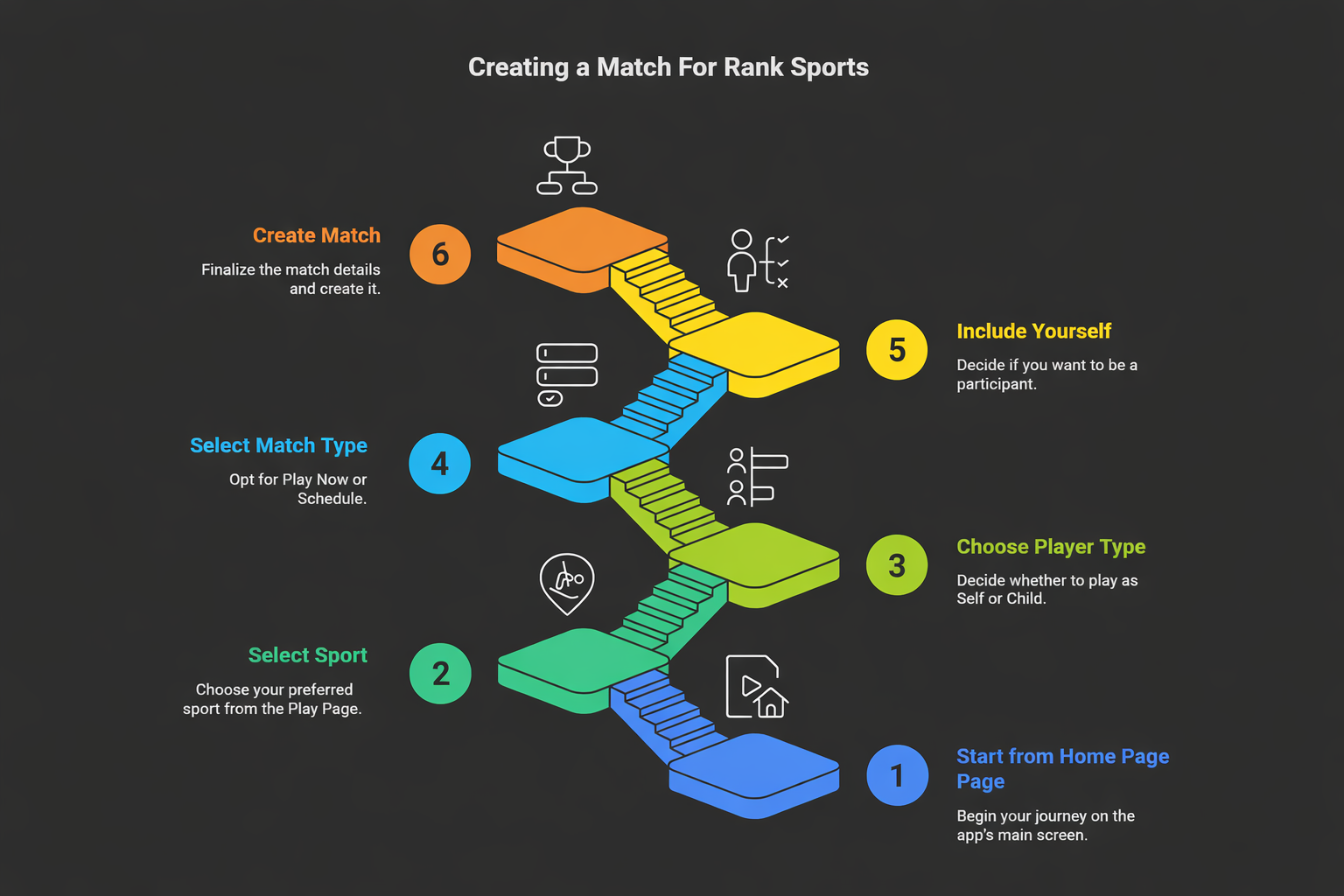
Home to Play
- From the app navigation bar, tap the Play icon.
- The app opens the Play Page.
- The Play Page displays Favourite Sports and All Sports.
- Sport cards show quick actions such as Play, Shop, and Wiki.
Start Match Creation
- Tap Play on a sport card.
- The app opens the Select Whom to Play screen.
Select Player Type
Choose who the match is for:
| Option | Result |
|---|---|
| Self / Parent | Continue directly to match timing options. |
| Child | Open the Child Selection screen before continuing. |
Child Selection
If Child is selected:
- Select an existing child profile, or add a new child profile if none exists.
- Tap Continue to move to match timing options.
Select Match Timing
The app displays a bottom sheet with two options:
| Option | Purpose |
|---|---|
| Play Now | Create a match for immediate play. |
| Schedule | Create a match for a future date and time. |
After selecting an option, tap Continue.
Self Participation
The app may ask whether the current user wants to join as a participant:
- Select Yes to add the current user to the players list.
- Select No to continue without adding the current user.
The players list updates based on this selection.
Create Match Screen
On the Create Match screen, complete the required details:
| Field | Description |
|---|---|
| Participants | Open Select Participants to choose players from profiles and contacts. |
| Ground / Venue | Select the match venue from the dropdown. |
| Location | Uses the user's current location by default when available. |
| Date / Time | Required when scheduling a match. |
| Rules and Settings | Complete any sport-specific match settings. |
The Create Match button becomes available after all required fields are completed.
Create the Match
- Tap Create Match.
- The app validates the match details.
- On success, the app shows a confirmation message.
- Selected participants receive match notifications.
Notes
- Show clear empty states when profiles, children, participants, or venues are unavailable.
- Keep bottom sheets focused and easy to dismiss.
- Validate required fields before enabling the create action.
- Show progress feedback during long operations.
🎮 Sport-Specific Start Match Guides
Each group sport has its own start match flow (toss, scorer/referee assignment, player selection). See the guides below:
| Sport | Guide |
|---|---|
| 🎯 Kho-Kho | Start Match – Kho-Kho |
More sport-specific guides will be added here as they become available.
Need Help?
For help creating group matches, contact support@sportzdom.com.