User Connections
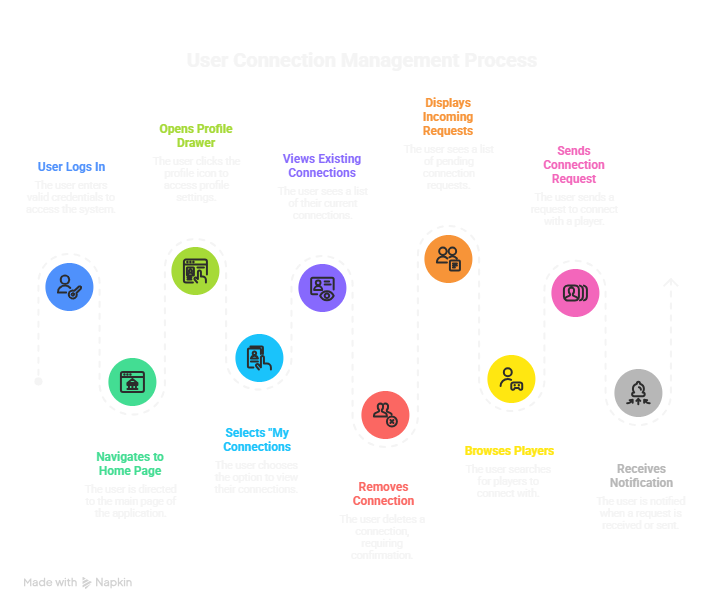
User Connections help you build your sports network inside Sportzdom. You can connect with teammates, opponents, friends, fans, and other players so it is easier to invite, follow, and interact with them.
Overview
Connections represent mutual visibility and interaction between two players. After players are connected, they can:
- View each other's profiles and stats based on privacy settings.
- Tag each other in match photos and memories.
- Send match invites, team invites, or ground booking invites.
- Receive updates when connections join matches or earn awards.
Why Connect?
Connecting with other players helps you:
- Track your friends' sports progress.
- Re-invite past teammates for new matches.
- Improve player discovery and visibility.
- Get better recommendations for events, matches, and tournaments.
- Build a verified sports network for future team or tournament registrations.
How to Open Connections
- Log in with valid credentials and open the app home.
- Open the profile drawer from the profile icon.
- Tap My Connections to open the Connections page.
You can also visit another player's profile and tap Connect to send a connection request.
Connections Page
The Connections page includes three tabs:
| Tab | Purpose |
|---|---|
| My Connections | Shows current connections and allows you to remove them. |
| Requests | Shows incoming connection requests that you can accept or decline. |
| Add Connections | Lists players you can send connection requests to. |
Managing Connections
Removing a Connection
- Open the My Connections tab.
- Tap the delete icon on a connection.
- Confirm deletion in the confirmation sheet.
After confirmation, the connection is removed and the list updates.
Sending a Request
- Open the Add Connections tab.
- Tap Connect on a player entry.
After the request is sent, the button is disabled and the player receives a notification.
Accepting or Declining Requests
- Open the Requests tab.
- Accept or decline the incoming request.
The action updates the connection lists and sends the relevant notification.
Connection States
| Status | Meaning |
|---|---|
| Connected | Both players accepted the connection. |
| Pending | A request has been sent and is waiting for acceptance. |
| Rejected | The request was declined. |
| Blocked | You or the other player blocked access. |
Connection Limits by Plan
| Plan | Max Active Connections |
|---|---|
| Free | 5 |
| Standard | 10 |
| Premium | 20 |
Removing a connection frees one slot. You can send a new request later.
Notifications
Users receive notifications when:
- A connection request is sent.
- A connection request is received.
- A request is accepted or declined.
Summary
Profile > My Connections > My Connections | Requests | Add Connections
Need Help?
For suspicious requests or connection-related issues, report from the request list or contact support@sportzdom.com.