👥 How to Create a Team
Teams are the backbone of Sportzdom. You can create, manage, and grow your team with just a few taps.
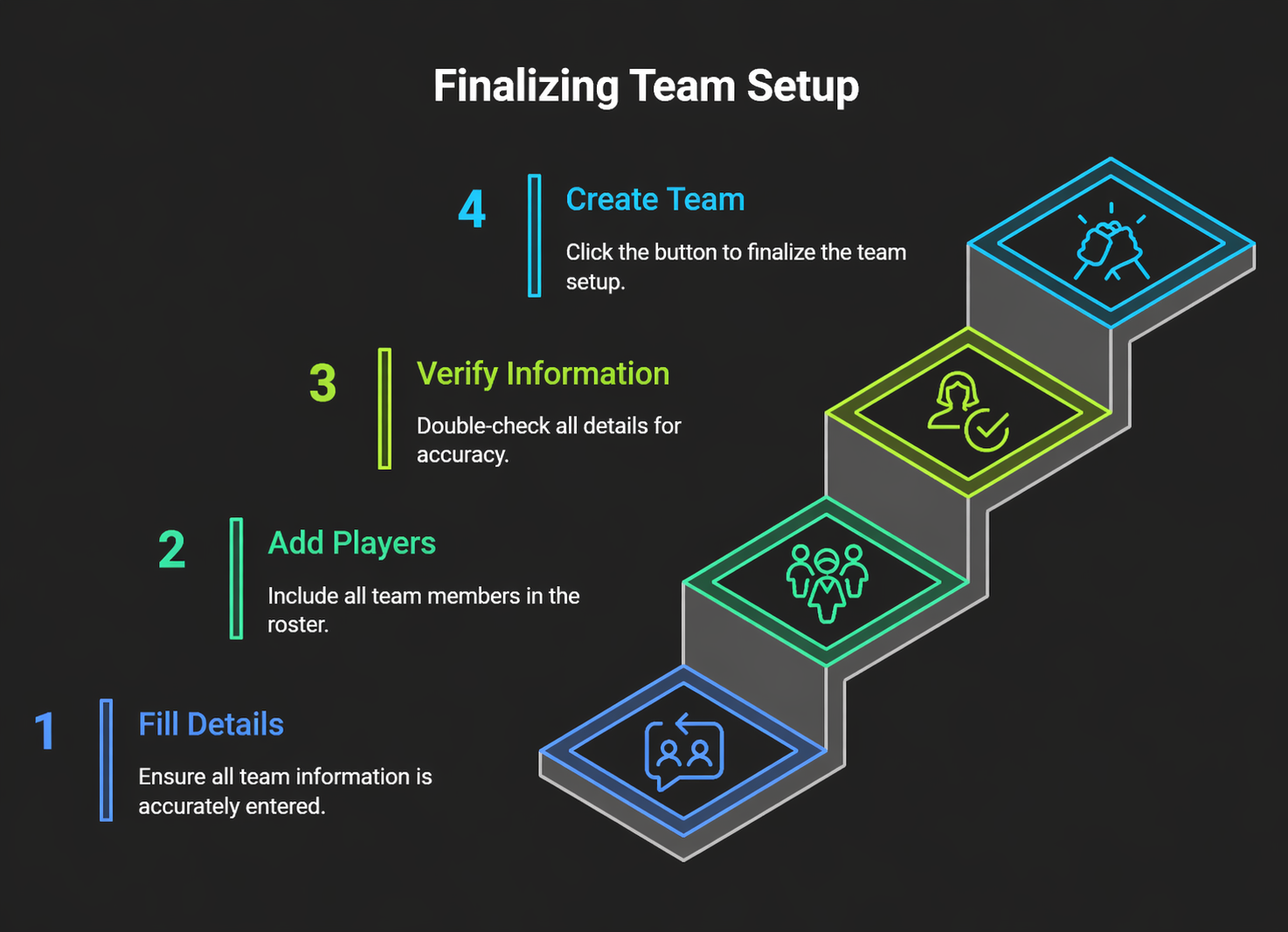
📌 Step 1: Navigate to “Teams”
From the bottom navigation bar:
- Tap on the Teams tab
- Press the “+ Create Team” button
📝 Step 2: Fill in Team Details
| Field | Description |
|---|---|
| Team Name | Name of your team (e.g. Titans FC) |
| Sport | Select the sport this team plays |
| Age Group | Choose appropriate category (e.g. U14, Open) |
| Location | Your city, district, and state |
| Team Logo | Upload a team badge or photo (optional) |
A team can be created for each sport, even if the players overlap.
👤 Step 3: Add Team Members
You can add players by:
- ✅ Searching Sportzdom-registered users
- ➕ Sending invite links to new players
- 👥 Manually entering basic details (for offline teammates)
Players will be asked to confirm before joining.
🧑🤝🧑 Step 4: Assign Roles (Optional)
Each team member can be assigned roles:
- 👤 Player
- 🧑⚖️ Captain – Manage team invites, match participation
- 🧑🏫 Coach
- 📸 Media Contributor
- ⚙️ Team Admin
Roles help control permissions and improve coordination during matches and tournaments.
🏷️ Step 5: Set Team Tags (Optional)
Add searchable tags like:
- 📍 Region-based tags (e.g. “Hyderabad”, “Uttar Pradesh”)
- 🏆 Specialization tags (e.g. “District Champions”, “School Level”)
📢 Step 6: Publish and Share
After saving:
- Your team appears under “My Teams”
- You can share your team link publicly or restrict visibility
💡 What Can You Do With a Team?
- Create and join matches with your team
- Assign players to match squads
- Track team and player stats
- Upload media from matches
- Manage multiple squads per age/sport category
🆘 Need Help?
Contact support@sportzdom.com or visit the Team Management FAQ →